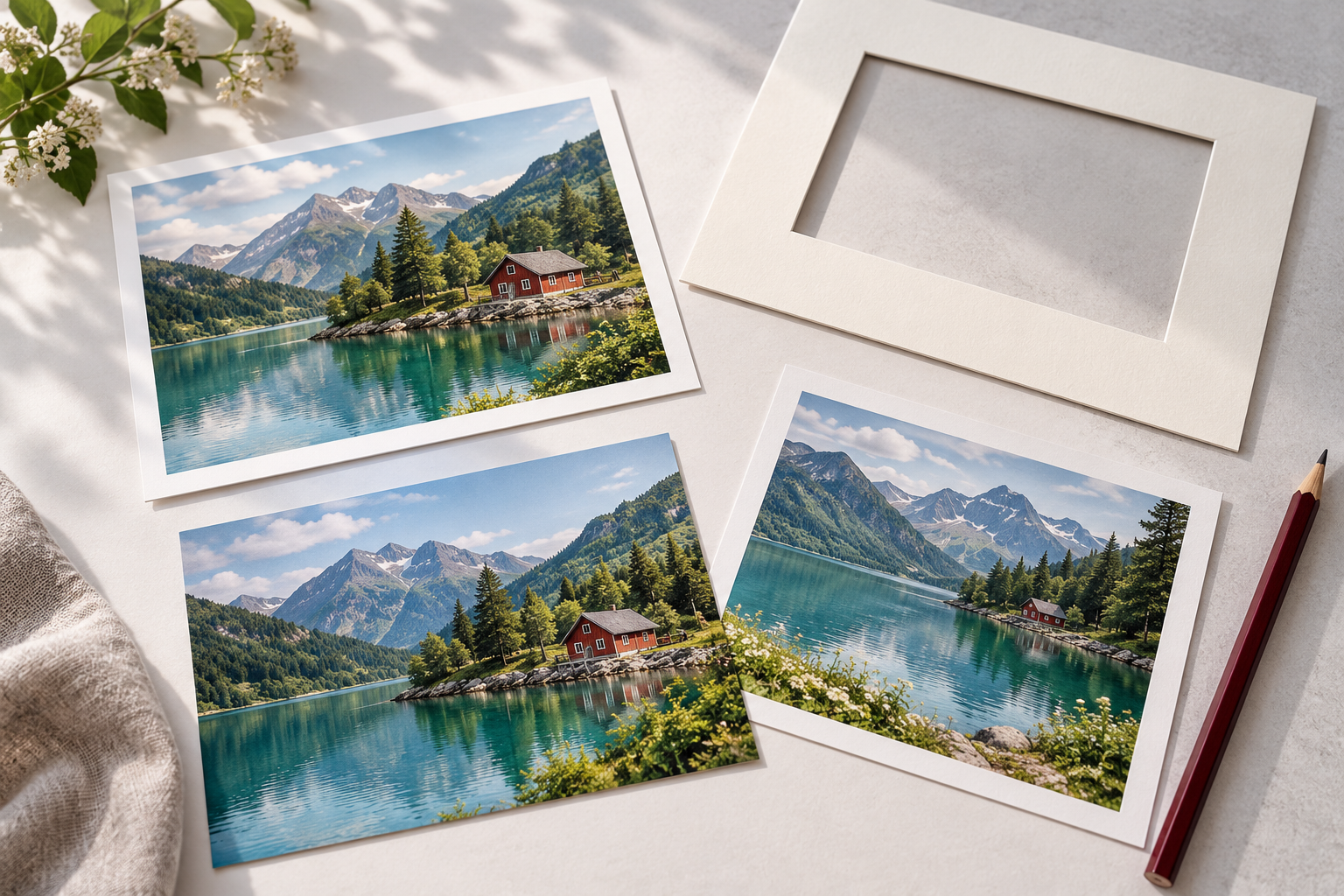
Before applying a photo-print promo code, open the layout for your photographs. If a person or caption sits near an edge, check the format, fit-or-fill setting and crop position before considering the discount. These shape the layout, but do not guarantee that edge details survive production trimming. This guide provides no live codes. Using the Russian service netPrint's guidance, we separate cropping, production trimming and resolution — three problems an accepted code cannot fix.
One photograph, different proportions
When the photograph and paper have different proportions, netPrint describes two options: fit the whole image with possible white space, or fill the print by cropping. Choose between filling the paper and preserving the whole composition.
For a hypothetical 4000 x 3000-pixel file, the aspect ratio is 4:3. Filling a 3:2 area proportionally at that width retains about 2667 pixels of height. Moving the crop selects what remains. This calculation describes geometry, not a production tolerance.
Do not judge a whole order by the first photograph that looks right. A collection can contain landscape, portrait and square images. Choosing one print format for the set does not establish that every composition will survive. Open each image's preview, particularly when an important feature is close to an edge.
The edge has a second boundary
Production trimming is a separate risk. netPrint's guidance warns of possible slight-angle movement: thin borders and important edge details may be affected. This is service-specific guidance, not a universal tolerance; confirm the safe area for the particular product.
A caption fitting the layout is not necessarily protected from trimming. Ask the lab about safe margins; do not transfer them from a photo to a photobook or gift without checking its requirements.
A ppi setting cannot replace source pixels
As Adobe explains, without resampling, increasing print dimensions lowers pixel density. Changing ppi adds no image data. Upsampling estimates new pixels rather than recovering original detail absent from the source.
Use the original photograph, not a thumbnail screenshot. Compare its pixel dimensions with the lab's requirements for the chosen product. Investigate a quality warning before paying; its absence does not guarantee results. Check the composition separately.
Review the intended print, not just its thumbnail
Inspect the edges of the preview as well as its centre. Check the people, text and details that made you choose the image in the first place. Then compare the layout with the source: what disappeared, were borders added, and did the caption move?
- For a frame or album, check the required finished-print dimensions and visible opening, not just the format's name.
- After changing format, revisit the crop across the collection. Do not assume the previous positioning still works.
- Keep the approved order settings and any available preview privately, without posting personal photographs or the recipient's details.
If a code you find only covers a different size or print type, first decide whether that print suits you. This is a hypothetical situation, not a current netPrint promotion. Recheck the layouts after changes, and compare prices for the same set of prints. Paying less for a picture you did not intend to crop is not the outcome you set out to buy.